Understanding the Basics of Duplex Printing
Printing on both sides of a sheet of paper is a standard requirement for many offices and homes. It saves paper, reduces bulk, and creates a professional appearance for documents. However, many users find the process confusing. They often struggle with settings that seem to hide deep within menus. Consequently, they waste paper by manually re-feeding sheets or simply printing on one side. If you have ever wondered how to print double sided without the hassle, you are in the right place. This guide will demystify the process completely.
Duplex printing is the technical term for this action. It comes in two forms: automatic and manual. Automatic duplexing means the printer has the hardware to flip the paper for you. It pulls the sheet back in and prints on the reverse side without your help. Manual duplexing, on the other hand, requires your intervention. The printer prints one side, pauses, and waits for you to flip the stack. Therefore, understanding which type of printer you own is the first step.
Furthermore, the benefits extend beyond just saving trees. Double-sided documents are easier to read. They feel more substantial in the hand. For students, this means lighter backpacks. For businesses, it means lower shipping costs for mailed documents. Therefore, mastering this skill is highly valuable. However, things can go wrong. Paper jams, upside-down text, and blank second pages are common frustrations.
In this article, we will explore the technical steps to set up your printer correctly. We will also dive deep into troubleshooting. We will solve the mystery of the “upside-down page.” Additionally, we will look at specific software settings for Windows, Mac, and popular applications like Word and PDF readers. By the end, you will be a duplex printing expert. You will handle every print job with confidence and efficiency.
Distinguishing Between Automatic and Manual Duplexing
Before you attempt to print, you must identify your hardware capabilities. This knowledge saves you time and frustration. Most modern inkjet and laser printers come with built-in duplex units. You can usually tell by looking at the output tray or the rear panel. If you see a separate drawer or a switch that flips paper, your printer likely supports automatic duplexing. Consequently, you can simply select the option in your software and let the machine do the work.
However, older models or budget-friendly printers often lack this feature. They require manual duplexing. This process is more hands-on. The printer driver will instruct you to flip the paper yourself. Therefore, you must pay close attention to the on-screen prompts. If you ignore them, you will print on the wrong side or print over the existing text. This results in a mess of wasted ink and paper. So, check your printer manual or the manufacturer’s website for specifications.
Moreover, some printers claim to support duplexing but require an optional accessory. This is common in office laser printers. The duplexer might be sold separately. If you bought a used printer, check if the unit is installed. Without it, the printer will not flip the paper. Consequently, you will wonder why the setting is greyed out on your computer.
Additionally, the speed of duplexing varies. Some printers print one side, pause, and then print the other. This is slower. High-end printers have instant duplexing capabilities. They flip the paper rapidly. Therefore, if speed is a priority for your office, check the duplexing speed in the specs. Knowing your hardware is the foundation of learning how to print double sided effectively. Once you know your machine, you can choose the correct settings on your computer.
Configuring Settings on Windows Operating Systems
Windows is the most common operating system in offices. Therefore, knowing how to navigate its print menus is essential. When you click “Print” in any application, a dialog box appears. This box gives you access to printer properties. Look for a tab labeled “Finishing,” “Layout,” or “Features.” The location varies by printer driver. However, the option is usually straightforward. You will see a checkbox for “Duplex Printing” or “Print on Both Sides.”
Furthermore, you must select the binding orientation. This is a crucial step. You will usually see options for “Flip on Long Edge” or “Flip on Short Edge.” Most documents, like books, use the long edge. This means the top of the page stays at the top. If you choose the wrong one, your text will print upside down. Consequently, you will have to rotate the paper to read the back. This is a common mistake for beginners.
Additionally, Windows allows you to set duplexing as a default behavior. You can do this through the “Devices and Printers” section in the Control Panel. Right-click your printer and select “Printing Preferences.” Here, you can set the default to “Always Print Double Sided.” This is great for offices trying to reduce paper waste. Therefore, users do not have to remember to select it every time.
However, sometimes the option is missing. This often happens if the driver is outdated. Windows might be using a generic driver. In this case, go to the manufacturer’s website. Download the specific driver for your printer model. Install it, and the duplex options should appear. Keeping drivers updated is a key part of troubleshooting. It ensures all hardware features are recognized by the system.
Setting Up Double-Sided Printing on macOS
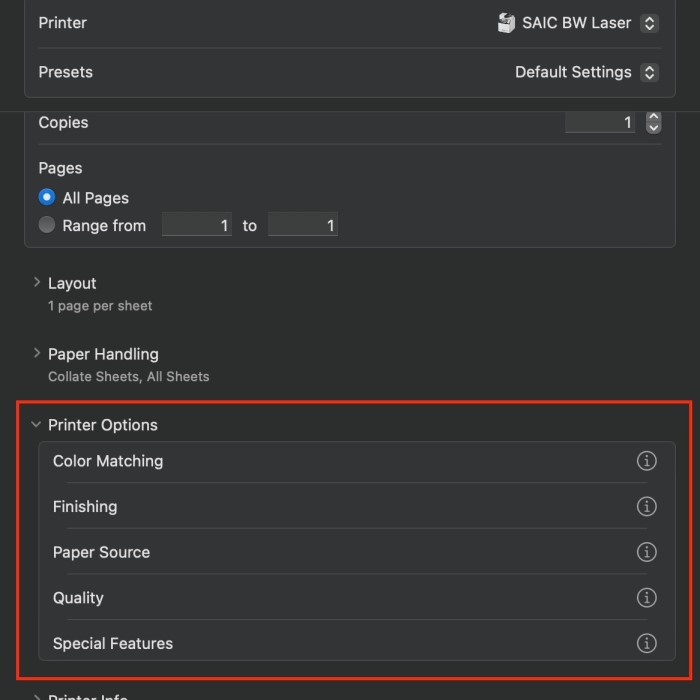
Mac users often enjoy a streamlined interface. However, print dialogs can sometimes look different than on Windows. When you press Command+P or click File > Print, a dropdown sheet appears. Look for a section that says “Layout.” It might be hidden under a dropdown menu that initially says “Preview” or “Copies.” Click that menu to find “Layout.” Here, you will see the “Two-Sided” option. Check that box to enable duplexing.
Furthermore, Macs are very good at detecting printer capabilities. If your printer cannot duplex automatically, the system might gray out the “Two-Sided” checkbox. Alternatively, it might show instructions for manual duplexing. Therefore, ensure your printer is correctly installed on your Mac. You should use the AirPrint driver or the manufacturer’s specific driver for the best results.
Additionally, the binding options are similar to Windows. You will see “Long-Edge Binding” and “Short-Edge Binding.” Remember, long-edge is for standard portrait documents. Short-edge is for landscape documents like spreadsheets or presentations. Choosing the wrong one leads to confusing printouts. Consequently, always double-check this setting before hitting print.
Moreover, you can save these settings as a preset. After configuring your print job, look for the “Presets” menu at the top of the dialog. Choose “Save Current Settings as Preset.” You can name it “Double Sided.” Next time, you can just select this preset. This saves you from navigating the menus again. It makes the process of how to print double sided much faster on a Mac. This is a great productivity hack for frequent printing.
Troubleshooting Upside-Down and Backwards Pages
One of the most frustrating issues is the upside-down page. You print a document, flip it over, and the text is inverted. This happens due to the binding settings we mentioned earlier. If you select “Flip on Short Edge” for a portrait document, the printer flips the paper the wrong way. Consequently, the back side prints upside down. The solution is simple. Go back to your print settings. Change the selection to “Flip on Long Edge.” This usually fixes the problem instantly.
Furthermore, this issue can also stem from paper feed direction. Every printer feeds paper in a specific way. Some feed face-up, others face-down. If you are doing manual duplexing, you need to know your printer’s logic. The on-screen instructions usually guide you. They might say, “Reinsert the paper with the printed side facing up.” If you ignore this and insert it facing down, the text will be backwards or upside down. Therefore, read the manual prompts carefully.
Additionally, check the orientation of your document. If you are printing a landscape chart, you might actually need the short edge flip. The logic reverses for landscape mode. The top of the chart is on the side. Therefore, the printer needs to flip the paper along the short edge to keep it readable. This distinction is vital for complex documents.
Moreover, some printer drivers have a “Rotate” option. This is different from the flip settings. It rotates the image 180 degrees. If this is accidentally checked, it can mess up your duplex alignment. Consequently, look through the “Advanced” settings in your driver. Ensure no extra rotation is applied unless you specifically need it. Correcting these settings ensures your double-sided documents are readable and professional.
Solving Paper Jams and Feed Issues During Duplexing
Duplex printing involves a complex path for the paper. The paper must travel through the duplexer and flip over. This extra movement increases the risk of paper jams. If you frequently experience jams when printing on both sides, check your paper type. Thin or low-quality paper curls easily when heated. Consequently, it gets stuck in the duplexer mechanism. Use higher quality, heavier paper for double-sided jobs.
Furthermore, paper dust can accumulate inside the duplexer. This buildup affects the rollers’ grip. The printer might try to pull the paper back to print the second side and fail. Therefore, regular maintenance is important. Use a can of compressed air to blow out dust. Clean the rollers with a lint-free cloth lightly dampened with water. This restores their tackiness and improves paper feed.
Additionally, check the paper guides in the input tray. If the guides are too loose, the paper might enter the printer at an angle. This misalignment gets worse when the paper flips. It leads to a jam. Therefore, always adjust the guides to fit the paper stack snugly. Do not overfill the tray. Overloading pushes the limits of the separation pad.
Moreover, moisture is an enemy of printing. Paper absorbs moisture from the air. Damp paper sticks together. When the printer tries to re-grab a sheet for the second side, it might grab two sheets. This causes a jam or a blank back side. Therefore, store your paper in a cool, dry place. Keep it in its wrapper until you need it. These simple habits prevent the most common hardware failures associated with how to print double sided.
Manual Duplexing: A Step-by-Step Guide
If your printer does not support automatic duplexing, you must do it manually. This process intimidates many users. However, it is quite logical once you understand it. First, print only the odd-numbered pages. Go to your print settings. Look for “Print Range” or “Pages.” Select “Odd Pages Only.” Click print. The printer will produce a stack of paper with one side printed.
Furthermore, you must now reinsert this paper. This is where people make mistakes. You need to determine which way to flip it. Do a test first. Take a single sheet. Mark an “X” on one side. Insert it into the tray according to your printer’s logic. Print a test page. See which side the printer prints on. Does it print on the side with the “X” or the blank side? This test tells you how to orient your stack.
Next, place the printed stack back in the tray. Usually, you place the printed side facing up or down depending on the printer. The blank side must be ready to receive ink. Then, go back to your computer. Change the print setting to “Even Pages Only.” You must also check the “Reverse Order” option. This is critical. If you do not reverse the order, page 2 will print on the back of page 1, but page 4 will print on the back of page 3 in the wrong sequence. Consequently, your document will be scrambled.
Software-Specific Solutions for PDFs and Word
Different applications handle printing differently. Microsoft Word is generally very reliable. It communicates well with printer drivers. In Word, the “Print on Both Sides” option is usually prominent. You can select “Flip on Long Side” directly from the main print menu. Consequently, Word documents are rarely the source of duplex errors. However, always check the preview. Word shows you exactly how the pages will look. Use this feature to catch mistakes before you print.
On the other hand, PDFs can be tricky. Adobe Acrobat Reader sometimes overrides printer settings. If you are having trouble with a PDF, look at the “Page Setup” or “Properties” button within the Adobe print dialog. Ensure the “Double Sided” option is selected there. Sometimes, Adobe defaults to “Single Sided.” Therefore, you must manually change it every time. Additionally, check the “Page Scaling” option. “Fit to Printable Area” can sometimes shift the image. This makes the margins look uneven on the back side.
Furthermore, web browsers present another challenge. Printing from Chrome or Edge often uses a simplified print interface. You might need to click “More Settings” or “Margins and Options” to find the duplex toggle. Browsers sometimes default to printing the header and footer (the URL and date). This uses extra ink and looks messy. Therefore, toggle those off manually. Then select the “Double Sided” option if your printer supports it.
Moreover, presentation software like PowerPoint has its own logic. When printing slides, you usually print handouts. You can select to print multiple slides per page. Then, you can duplex that handout. Be careful with the orientation. If you print three slides per page, the layout changes. Ensure your flip setting matches the paper orientation. Mastering these software nuances ensures you know how to print double sided in any application.
FAQ: Common Questions Answered
How do I set my printer to print double-sided?
You can set this in the “Printing Preferences” on your computer. Go to the Control Panel on Windows or System Preferences on Mac. Find your printer and access its properties. Look for a “Finishing” or “Layout” tab. Check the box for “Double-Sided Printing” or “Duplex.” Click “Apply” to save this as the default setting. Now, your printer will attempt to duplex every job automatically unless you change it.
How do I print something to be double-sided?
Open the document you wish to print. Press Ctrl+P (Windows) or Command+P (Mac). This opens the print dialog. Look for a checkbox or dropdown menu labeled “Two-Sided” or “Duplex.” Select “Long-Edge Binding” for standard documents. Click “Print.” If your printer is automatic, it will handle the rest. If it is manual, follow the on-screen prompts to flip the paper.
How to flip paper to print double-sided?
This depends on your specific printer model. Generally, you print the odd pages first. Then, you take the stack and reinsert it. For most inkjet printers, you place the paper printed side up, top edge first. For laser printers, it is often printed side down. Consult your printer manual for the exact diagram. Always do a test with one sheet to confirm the orientation before printing a large document.
How do you print double-sided on a PDF?
Open the PDF in Adobe Acrobat Reader. Go to “File” and select “Print.” In the print dialog, look for the “Printer” section. Click “Properties.” Find the “Duplex” or “Double-Sided” setting in the driver properties window. Select it and click “OK.” Ensure the “Print on both sides of paper” option in the main Adobe dialog is also checked. Then proceed to print.
Conclusion
Mastering the art of double-sided printing is a journey of understanding your hardware and software. It starts with identifying if you have an automatic duplexer. Then, it moves to navigating the settings on your specific operating system. We have explored the common pitfalls, such as upside-down text and paper jams. We have also provided solutions for manual duplexing. These skills allow you to save resources and create professional documents.
Technology is meant to make our lives easier. However, it requires a bit of knowledge to unlock its full potential. By following the steps in this guide, you can troubleshoot issues as they arise. You will no longer feel frustrated by confusing settings. Instead, you will approach the printer with confidence. You will know exactly how to print double sided efficiently.
Remember to keep your drivers updated. Use the correct paper type. And always check your preview before printing. These habits will save you time and money. Whether you are printing a thesis, a business report, or a recipe, double-sided printing is the smart choice. It reduces waste and organizes your life. We hope this guide has resolved your printing puzzles. Happy printing